Powered by Blogger.
Showing posts with label presets. Show all posts
Thursday, October 24, 2013

Autumn Lightroom presets collections

Above photo, taken in Tatra mountains, was processed using presets from this post.
Today I would like to share with you my new presets collection for Adobe Lightroom - this time presets for post-processing autumn landscape photos. Make the colours of autumn pop!

You can download my autumn presets here.

Also if you like them, I would greatly appreciate your feedback and shares of this post amongst your friends. It will motivate me to create & share even more free presets. Let me know your favourite ones too! And make sure to give links to photos processed with these presets in the comments below - I'd be very happy and interested to see them.

BTW you can find more presets created by me here. They include Adobe Lightroom, Topaz Adjust and Photomatix Pro presets. And they are all free!

To import presets into Adobe Lightroom:
  1. Extract downloaded presets, remembering the location where you did extract the files.
  2. Go to Develop module in Lightroom.
  3. Expand Presets panel (it's on the left side just below Navigator).
  4. Right-click on the folder of your choice (eg. User Presets) and select Import...
  5. Navigate to the location where you extracted presets, select all of them and click on the Open button.
There are 6 categories of presets that are described below but each of the presets comes in a few variations what gives a total of 17 autumn presets!

Here is base unprocessed photo:

And below you will find presets in action with a short description of best use:

Preset previewPreset nameDescription & best use caseNumber of variants
Dramatic contrastPreset which works great for creating very dramatic images. Works very well for dramatic mountain photos and for forest scenes.1
VibrantPreset with very vibrant colours. Works very well on foggy or rainy autumn days to add pop to otherwise lifeless and colourless images.

It might be too saturated for other cases though.
2
MonochromeMonochrome preset with large contrast for creating very moody images.2
NaturalPreset producing very natural colours. Works best for well exposed photos with good light. Good for typical landscape photos.

Might be too flat for foggy or rainy days.
4
PainterlyPreset with very warm palette and specific look adding a bit painterly look&feel to autumn images.

This preset works best for photos with relatively low dynamic range.
6
Red orange leavesPreset adding extra pop to red and yellows and decreasing saturation of other tones. Works best if there are many colourful leaves in the frame.2
Thursday, May 23, 2013

Lightroom Vintage presets

before after

Today I would like to share a bunch of vintage presets for Lightroom 4 (they are also good for Lightroom 5 beta). You can download them here.

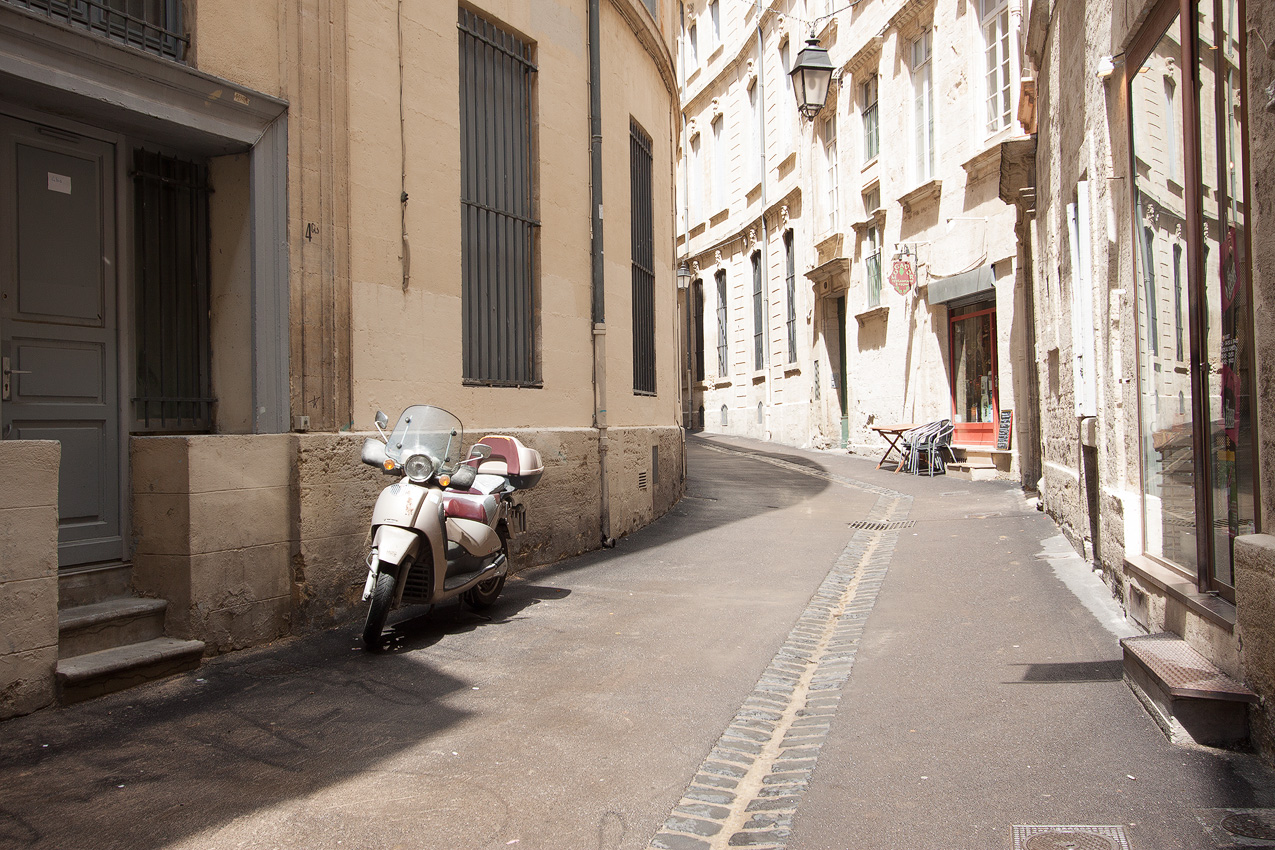
You can see example of one of the presets in action in the photo above. I took this photo in Montpellier old town. The After version was developed using Vintage6 preset which you will find in the ZIP. No additional editing work was required apart from sharpening using High Pass filter.

My presets work best for well-exposed (and slightly over-exposed too) outdoor scenes taken in day light. If the scene is too dark (eg. indoors) it might have magenta cast.
Thursday, April 18, 2013

Photomatix Pro presets for night scenes

Night scenes are beautiful but at the same time quite challenging for photographers - exposures are long, images have more noise than in daylight, it's often cold. Although I can't make taking photos any easier for you I can at least help you in processing them. So today I'm sharing 7 presets for Photomatix Pro to process night scenes! I used these presets in many of my night photos (including above) like this or this so I hope you will be able to get some great results with them as well.

You can download the presets here. They are both for Details Enhancer and Fusion/Natural processing methods.

For more information on processing and taking HDR photos read my HDR tutorial.

To install the presets*:
  1. Download the presets and extract them on your disk.
  2. Start Photomatix Pro 4.2. If you haven't updated to 4.2 visit HDRsoft homepage and download your upgrade (in case you're eligible to it).
  3. Open any image and tonemap it to go to the tonemapping preview mode.
  4. In the Presets window change tab from "Built-In" to "My Presets".
  5. In the combo-box in the upper part of the Presets window select "Import Presets..." item.
  6. Navigate to the directory where you extracted presets and select all the files you want to import. You might also want to specify category for the imported presets (eg. "Downloaded"). To do this just fill in the text field at the bottom of the Import window.
  7. Accept the selection and wait for the thumbnails to appear. Voila!
Tuesday, January 22, 2013

Free Topaz Adjust presets


Presets are a very important part of my workflow. In each program I use I have a rich collection of my own settings. No matter it's Photomatix Pro, Lightroom or Photoshop. Using presets has a few advantages for me: I can work much faster (I usually just make small adjustments to them) and also my photos have more consistent look.

So after sharing presets for Photomatix and Lightroom 4 a number of times it's now time to share some presets for Topaz Adjust. I decided on sharing presets I use to fine-tune my HDR and astro photos. You can download them here. As always they are free of charge. You will find following presets in the bundle (actually there are a few more but these ones are my favourite ones):
Preset nameDescriptionExample
AstrophotoI used this preset for a number of my astrophotos including this one and this one. This preset protects highlights, does some strong adaptive exposure and enhances details what makes it great for night photography.
City at nightGreat for blue hour cityscapes like this one. Protects highlights, increases saturation and also enhances blue hue of the image.
Colourful landscapeSlightly increases colour saturation what makes it great whenever you want to pop colour in your landscape photos.
Colourful sunrisePreset very similar to colourful landscape but warmer. It also preserves more details in shadows. Both these properties make it great for sunrise photos like this one.
Night in the old town & night in the old town 22 presets that are perfect for shots in low light taken in the old towns like this one for instance.

And here is instruction how to import them to your Topaz Adjust:
  1. Download presets from the link above.
  2. Unzip archive on disk.
  3. Open Photoshop and open Topaz Labs -> Topaz Adjust
  4. Make sure presets list is shown. If not click on the arrow on the left of Topaz Adjust Window.
  5. Click Import button at the bottom of the screen and navigate to the folder where you extracted ZIP archive. Select file to import and click Open button.
 
© Copyright 2011 Photoshop and Photography All Rights Reserved.
Free Templates by Cool Blogger Tutorials- Powered by Blogger.com.