Powered by Blogger.
Monday, December 31, 2012

20k pageviews and last post this year


Yesterday my blog reached yet another milestone - 20.000 pageviews in a single month! For me it's a great achievement because at the beginning of this year my blog had only around 200 - 300 pageviews monthly so now it's 100 times more. I hope to have 200.000 pageviews per month at the end of next year :) that would be nice (but would be hard to achieve as well but I hope you will help ;) )

You can view my summary of this year in pictures here (in form of free eBook) and also view my top 5 photos taken in 2012.

As this is also my last post in 2012 I would like to wish you all a Happy New Year full of positive surprises and events. I also hope to view great photos from you in the coming year.

And finally a few words about the photo from this post. It shows surroundings of La Casa de los Coroneles (House of the Colonels) in the town of La Oliva on Fuerteventura. I used only 3 exposures at 2 EV spacing but they covered dynamic range of the scene pretty well.
Sunday, December 30, 2012

Tutorial: MagicLantern + Lightroom + Photomatix + Topaz = Perfect HDR Workflow

I prefer not to repost images but end of year is a great occasion to look back. I took this image in 2011 in Rome and it's still amongst my favourite photos.
Back in April 2012 I posted details on my HDR workflow. However, I always try to make my workflow better and more effective. My seek to improve it resulted in quite a lot of changes in recent weeks and months, mainly addition of two new tools: MagicLantern and Topaz filters which now became essential to me. So below you will find details on my updated workflow:

  1. I normally start by using MagicLantern. It's a tool that greatly extends capabilities of Canon DSLRs. You can read more about its advantages here. Most of the time I use its HDR bracketing feature to set 5 to 9 brackets. Great thing is that I can do this even when shooting hand-held (Photomatix doesn't usually have problems with aligning the images). When I work with shallow depth of field I also use its other feature: Focus Stacking.
  2. Then I head to Lightroom where I organize my photos and apply some preliminary processing.
    1. Regarding organizing my photos I first go through whole folder and mark best photos as picks and worst as rejected. Then I go through it another time, repeating this process, and probably once more. After that I go through my folder and group similarly looking images into Stacks. I usually process only 1 photo (or bracketed sequence) from each Stack and reject the rest. This results in about 90 - 95% of all photos being rejected.
    2. Concerning processing. Most of the time this is limited to setting correct white balance (I use Cloudy or Shadow for sunsets and sunrises), applying lens correction and reducing chromatic aberrations. In case of photos taken with high ISO I can also apply noise reduction at this stage. I often apply some small sharpening here but this isn't a recommended practice :)
  3. Open images in Photomatix Pro using a Lightroom plugin (which comes for free with your Photomatix Pro copy) making sure the Auto Re-Import option is checked. In Photomatix Pro my target is to restore as many details in highlights and shadows as possible. At this stage I don't care about colour temperature or saturation. Therefore, what I do most of the time recently is to use Default preset in Photomatix Pro 4.2.5. You might find it boring, colorless etc. Yes, it's quite boring compared to some other presets (especially Grunge or Creative) but it has strong advantage of restoring details perfectly. You can read more about my reasons here. I do make a few minor changes to it (looking at the histogram all the time to make sure neither highlights nor shadows get clipped):
    1. I lower White Point setting value to much closer to 0 (look at the histogram when doing this because what you should achieve is avoiding highlights clipping) to make sure highlights aren't getting clipped
    2. I also increase Detail Contrast (often all the way to 10.0) to enhance details as this setting increases local contrast.
    3. I also adjust Lighting Adjustments to get as realistic results as possible (mainly to get rid of any halo arifacts). I use different values depending on a photo so I'm not giving any good or bad values here.
    4. Sometimes I may also adjust Luminosity or Gamma.
  4. I save the image as 16-bit TIFF. Saving to 8-bit TIFF or JPEG has the effect of reducing quality and the colour gradients aren't that smooth anymore.
  5. As I use Auto Re-Import feature when exporting from Lightroom to Photomatix I can now go back to Lightroom and my tone-mapped image will be right there. There I adjust settings like:
    1. Vibrance (I often decide to reduce it to to the value between -5 to -20),
    2. Clarity (I often increase it to a value between 15 and 50),
    3. Contrast (just a little bit at this stage),
    4. Highlights and Shadows (to restore them).
    5. If necessary I also correct colour balance at this step (especially greens as I have some problems capturing them properly or when I want warmer look for sunrises or sunsets). I often use presets at this step to make my work faster.
  6. Export image to Photoshop... and now the real fun begins :) Yeah, I'm a great fan of Photoshop. I prefer to edit my photos in it and not in Lightroom. However, my editing in Photoshop is also quite simple... and yes I do use presets (Actions in this case) to make it even simpler :) :
    1. I start with denoising my image using Topaz Denoise 5. I generally start by selecting a preset which removes all the noise and then select preset which is by a step weaker and make adjustments to it. Sometimes I apply different denoising to different parts of the image.
    2. After that I usually add some details using Topaz Detail 3 (new version really rocks!). This adds some clarity and visual sharpness to the image.
    3. Next step is to play with colours. I use three tools for it:
      1. Topaz Adjust - I use Topaz Adjust to make colours warmer and also to add some clarity and vibrance to the image.
      2. Colour balance adjustment layer - I might use this tool when I want to give specific look to the image, eg. to make it more purple for sunrises. I usually make only subtle changes with it but enough to make the image nicer.
      3. Hue/Saturation adjustment layer - I use it when some colours (eg. greens or blues) are oversaturated. I then reduce their saturation to make them look more naturally.
    4. After that I might add a bit of contrast using Curves adjustment layer. Most of the time I use Linear Contrast preset.
    5. Finally I apply sharpening. Most of the time I do it using Smart Sharpen or Unsharp Mask. However, recently I started to sharpen with High-pass filter and I'm pretty satisfied with the results. As I often do have sky in my photos I often sharpen selectively. Sometimes I create Layer Mask and paint on it manually with a very soft brush. Often, however, I generate it automatically by finding edges in the image and applying sharpening only to them.
  7. Finally I save my image as a JPEG with a maximum quality.
Saturday, December 29, 2012

On the walls

I took this photo in February 2012 in Sintra, Portugal and it shows ruins of the Moorish Castle. I regret taking only 3 exposures but unfortunately there was no way of taking more. I needed to shoot hand-held because there was no place on the walls of this enormous castle to set up tripod.

EXIF data:
Camera: Canon 5D MK II
Lens: Canon 24-105 f/4 L IS USM
Focal length: 24 mm
Aperture: f/9.0
Exposure time: 1/320 s ("middle" exposure)
ISO: 640
Number of exposures: 3
E.V. Step: 2 E.V.
Flash used: no
Tripod used: no
Filters used: no
Software: Photomatix Pro 4.2.5, Magic Lantern, Lightroom 4.2, Photoshop CS5
Friday, December 28, 2012

Tutorial: creating star bursts in camera

You have probably seen a number of photos with all light sources looking like tiny stars (also referred to as star bursts). If you haven't, take a look at the photo above to see what I mean. All point lights look like stars. This effect is especially effective in the night photos taken in the city as it makes such photos much more interesting.

You can create such an effect easily in post-processing but in fact it's possible and very simple to create it in camera as well (and frankly speaking I prefer achieving it this way). You just need to do following:
  1. Shoot with a wide-angle lens (eg. 16 or 24 mm),
  2. Make sure you use slow aperture (like f/13 or f/16 - the latter works best for me) because otherwise the effect won't be clearly visible (with very fast apertures it won't be visible at all),
  3. Make sure the light source doesn't fill whole frame or most of it (as the effect won't be visible in such a case), i.e. all light sources should be at some distance from the lens.
  4. Note: the number of stars' arms is very easy to predict. Each lens has a number of aperture blades (look in the specs). This number equals to the number of stars' arm this lens would produce. Canon 24-105 L has 8 aperture blades and that's why all "stars" in the image above have 8 arms.
Hope this helps :)
Thursday, December 27, 2012

My Top 5 this year

With year 2012 getting to an end I decided to make a small summary of it. It was a very nice year for me concerning photography. I greatly improved my skills (both as a photographer and retoucher), I became Shutterstock contributor, some of my photos were exhibited and also a few were used in a magazine. That's all great and I hope the next year will bring even more interesting things. But the most important thing is I took a few shots that I think are of high quality.

Below you fill find summary of my best photos taken this year. It's a very personal choice. Interesting thing is that only 2 out of 5 photos below are HDR photos. It shows that this year I tried a lot of different techniques and types of photography.

#5 Photo of a family in Dahab, Egypt.

#4 Photo of the jaguar from Warsaw Zoo.

#3 The Hieronymites Monastery in Lisbon

#2 Two roads, Milky Way over Fuerteventura Island

And the winner is...
#1 Buying books, Warsaw photo I took very recently became my personal favourite this year. I love everything about it - from composition to colors and mood it creates.
Wednesday, December 26, 2012

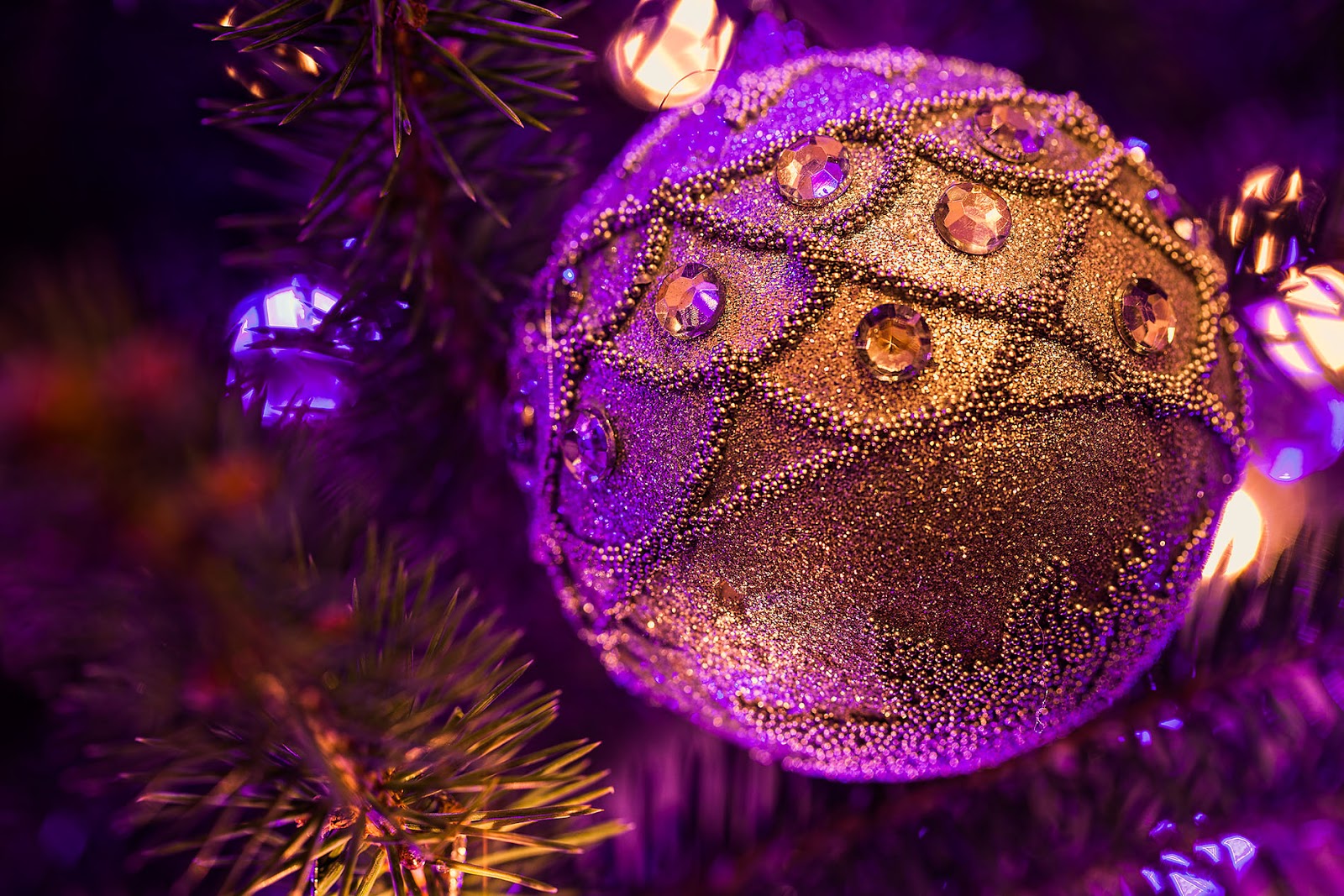
Christmas Tree

Christmas are almost over but the Christmas atmosphere is still there.

EXIF data:
Camera: Canon 5D MK II
Lens: Canon 24-105 f/4 L IS USM
Focal length: 24 mm
Aperture: f/14.0
Exposure time: 1.0 s ("middle" exposure)
ISO: 400
Number of exposures: 7
E.V. Step: 1 E.V.
Flash used: no
Tripod used: yes
Filters used: no
Software: Photomatix Pro 4.2.5, Magic Lantern, Lightroom 4.1, Photoshop CS5
Tuesday, December 25, 2012

Colorful lights

Warsaw Old Town looks beautifully now with a lot of colourful lights and beautiful reflections in the wet pavement. Here is another photo from there.

As you probably know I'm a great fan of Photomatix Pro's Details Enhancer algorithm. However, recently I started to use Fusion/Natural it offers quite a lot. For instance I used it to process the image above. Why? It produces very natural looking images and noise isn't a amplified. For these reasons I will probably update my HDR tutorial soon to describe Exposure Fusion as well.

EXIF data:
Camera: Canon 5D MK II
Lens: Canon 24-105 f/4 L IS USM
Focal length: 24 mm
Aperture: f/16.0
Exposure time: 2.5 s ("middle" exposure)
ISO: 320
Number of exposures: 7
E.V. Step: 1 E.V.
Flash used: no
Tripod used: yes
Filters used: no
Software: Photomatix Pro 4.2.5, Magic Lantern, Lightroom 4.1, Photoshop CS5
Monday, December 24, 2012

Glowing lamps

Another Christmas themed photo from Warsaw.

Also make sure to view my free eBook full of travel photos from 2012.

EXIF data:
Camera: Canon 5D MK II
Lens: Canon 24-105 f/4 L IS USM
Focal length: 24 mm
Aperture: f/13.0
Exposure time: 2.5 s ("middle" exposure)
ISO: 200
Number of exposures: 7
E.V. Step: 1 E.V.
Flash used: no
Tripod used: yes
Filters used: no
Software: Photomatix Pro 4.2.5, Magic Lantern, Lightroom 4.1, Photoshop CS5
Sunday, December 23, 2012

Merry Christmas

This will be a very short post - I would like to wish you a Merry Christmas everyone!
Saturday, December 22, 2012

Mountains and 2 years with Photomatix

I remember taking my first quite nice HDR images about 2.5 years ago. I started using Photomatix by that time (I used trial earlier for some time earlier but I didn't understand HDR by the time so the results were rather poor). Later that very year (2010) I checked HDRsoft web page to see if there were any updates. There weren't updates to the software but I found out HDRsoft was recruiting. As a programmer with a few years of experience by that time, although mainly in the gaming and similar industries, I gave it a shot and... ever since I am a member of Photomatix team :) believe me or not - it's a great experience. Working on an application you use on a daily basis and many (and I mean MANY) of your friends do use it as well is huge. It keeps one motivated and satisfied. I might take poor photos (but I hope it's not that bad) but as long as people are happy with Photomatix, so am I :)

Now a few words on a photo from this post. I took it during golden hour and it shows Lanzarote island. I didn't hope for anything nice when taking it as not only I was shooting it hand-helding my camera but also I was shooting it from a quickly moving ship (not to mention small jumps on the waves). I expected blurry, completely misaligned results together with horizon being completely off but luckily it wasn't that bad :) maybe I have image stabilization built-in my arms and hands :) ?

Also make sure to give my free eBook a try. You will find more than 20 pages full of photos in it.

EXIF data:
Camera: Canon 5D MK II
Lens: Canon 24-105 f/4 L IS USM
Focal length: 75 mm
Aperture: f/8.0
Exposure time: unknown (got deleted - sorry :) )
ISO: 640
Number of exposures: 3
E.V. Step: 2 E.V.
Flash used: no
Tripod used: no
Filters used: no
Software: Photomatix Pro 4.2.5, Magic Lantern, Lightroom 4.1, Photoshop CS5
Friday, December 21, 2012

Drawing from Warsaw

When I uploaded this image for the first time on my Facebook account I didn't expect many likes nor comments because I did it mostly for fun. However, in a very short time it became one of my most popular uploads. For that reason I would like to share it with you today.

To create it I used one of my recent photos from Warsaw. What I did was quite simple but I won't share all details now as I would like to write a tutorial about it if there is enough interest. Generally speaking I blended together a sketch and a photo of the same place (sketch was created digitally as I'm not skilful with drawing...).

Also make sure to give my free eBook a try. You will find more than 20 pages full of photos in it.
Thursday, December 20, 2012

My first free photo eBook


Inspired by +Jim Nix and +Dawid Martynowski I decided to give it a try and to create my own first photo eBook. It contains the best photos I took this year. Hope you like it! I'd be grateful for any shares and comments.

You can view it here or download here.
 
© Copyright 2011 Photoshop and Photography All Rights Reserved.
Free Templates by Cool Blogger Tutorials- Powered by Blogger.com.